PLICKERS

What is Plickers?

Plickers lets teacher poll class for free, without the need for student devices. Just give each student a card (a “paper clicker”), and use your mobile phone to scan them to do instant checks-for-understanding, exit tickets, and impromptu polls. Best of all, data is automatically saved, student-by-student, at plickers.com.

Plickers is a set of unique, printable QR codes. (You can print them in sets of 40 or 63.) Each card is different when held up in the four different orientations, and there is a letter (A, B, C and D) at the top of each orientation. When you ask a multiple-choice question, everyone holds up their card so that their answer is at the top of the QR code; at that point, you take a photo using the app, and get real-time, anonymous and formative feedback. (We say anonymous, as the letters aren’t easily visible to anyone else looking at others’ cards.)

Students holding QR codes upwards for teacher to scan their answers
  • Each students is given a card with a unique visual code
  • The code has four sides each lettered A,B,C and D
  • The students holds the card so that the letter they choose to answer the question with is at the top of their card

Features of Plickers

How to start using Plickers in four easy steps:

  1. Set up a free account (Plickers.com).
  2. Set up a class on the site.
  3. Download app on smartphone or tablet.
  4. Print cards.

Benefits of Plickers in Teaching


Benefits of Plickers in Learning

How to use Plickers?

Steps to integrating Plickers

1. Go on the website and create a teacher account on plickers.com.
2. Choose the tab labeled classes at the top of the page and type in your class roster. It will assign all your students to an individual plickr. You can add additional classes and students later as well.
3. Choose the tab on the website labeled cards to print out the students plickers. Strongly suggested to print the cards on cardstock so that they are more durable. Also, do not suggest to laminating the plickers because it will be hard for the tablet or smart phone device to recogni
ze the cards due to glare. Plickers are printed in sets of two to a page, so you will need to cut the page in half. If you teach at the elementary level, it is suggest adding the child’s name and the multiple choice lett
ers on the back of the plicker so that students can easily identify their
answer.
4. Choose the library tab to create questions. Responses can be either in multiple choice or true/false format. Select the correct response(s) for each question and click the tab labeled add to plan below each questio n to attach it to the appropriate class you have already created.
5. If you have a computer connected to a smart board, projector, or apple tv in your classroom and are connected into your plickers account. Then, select the live view tab on the website to display the question and answer choices for the students. Beside the question
will appear a full screen tab and another small button with an arrow that allows you to hide the response panel.
6. When students are holding up their plickers to answer a question, you will need to take your smart device, choose the plickers app, select the question you wish to use and scan the room by selecting the camera button which will appear at the bottom of the screen. You will see the
name of the child and their individual response for each question selected located at the top of your screen on the smart device when their response has been scanned. Also, a bar graph will appear so you can view the whole group data as well. The number of participates scanned is also provided to make certain that all students have responded
Plickers tutorial

KAHOOT !

What is Kahoot?

A mission to make learning awesome!

Kahoot is a game-based learning platform, used as educational technology in schools and other educational institutions. Its learning games, “Kahoot”, are multiple-choice quizzes that allow user generation and can be accessed via a web browser.

Kahoot can be used to review students’ knowledge, for formative assessment, or as a break from traditional classroom activities. Kahoot also includes trivia quizzes.


Features of Kahoot

Remote Computer Monitoring
Monitor student computer activity remotely from an administrator terminal.
Website & Application Blocking
Prevent students from accessing inappropriate or distracting websites, computer applications, and games.
Teacher/Student Screen Sharing
Broadcast teacher or student screens to all or selected groups of students.
Interactive Quizzes
Create and share assessments and quizzes that students can access remotely from their computers
Instant Messaging
Communicate privately with individual students to offer help or answer
questions
Student Assignment Distribution
Assign and distribute homework or classwork to students through the software.
Student Assignment Collection
Collect and grade student homework and classwork through the software
Progress Reporting
Receive detailed reports of student success and progress that can be shared with parents or administrators
Shared Content Libraries
Share files such as class notes,quizzes, and presentations with students or parents through content libraries accessible through the software

Benefits of Kahoot in Teaching


Benefits of Kahoot in Learning


How to use Kahoot in a classroom?

Tutorial video of Kahoot

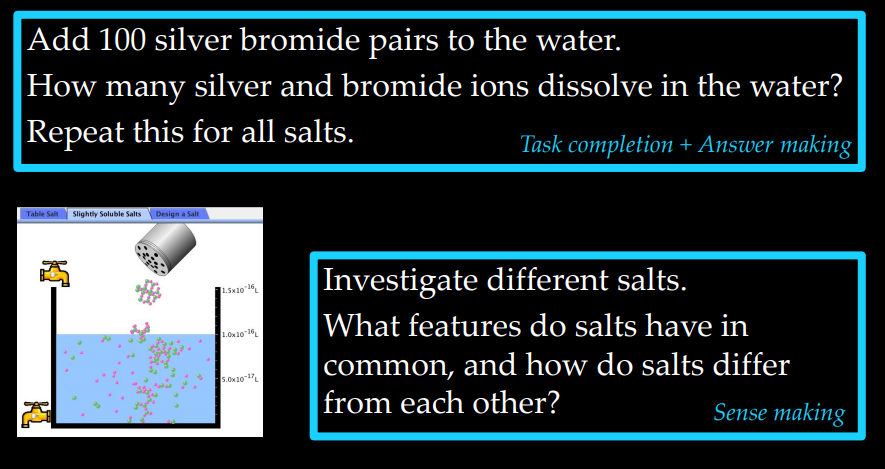
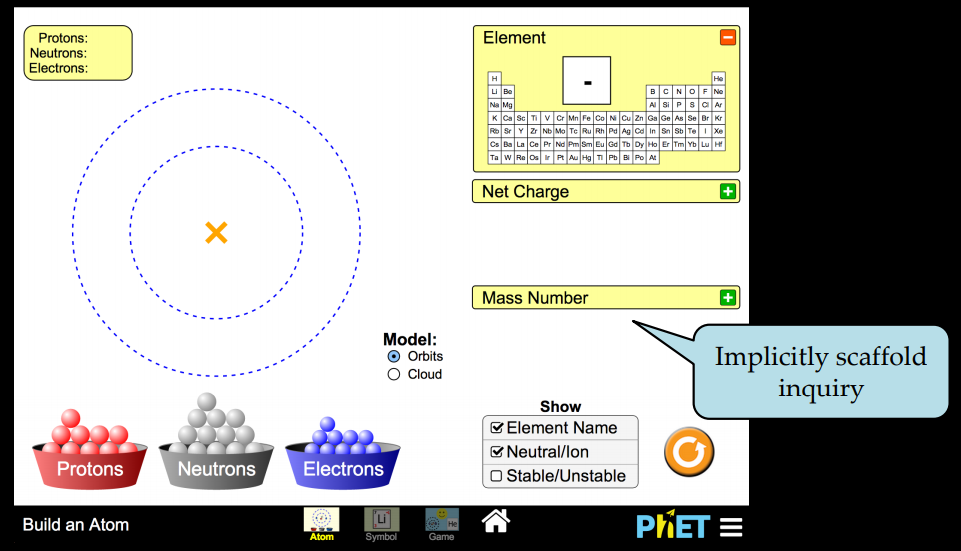
PHET Simulation

PhET Interactive Simulations for Active Learning in STEM

WHAT is PHET?

“PhET” originally stood for “Physics Education Technology,” but PhET soon expanded to other disciplines. The project now designs, develops, and releases over 125 free interactive simulations for educational use in the fields of physicschemistrybiologyearth science, and mathematics. The simulations have been translated into over 65 different languages, including SpanishChineseGerman, and Arabic; and in 2011, the PhET website received over 25 million visitors.


Access: 

PhET simulations can be used on computers, tablets, and chromebooks but each has a slightly different set-up requirement.  The simulations are free and do not require a license for educators and students but you do need an internet connection.  If you wish to use the simulations offline, you can purchase them for $0.99 for an iPad in the Apple store.  Depending on your computer, there are specific software requirements


Features of PHET

How to use PHET simulation? There are few simple step that you can follow.

1. Go to https://phet.colorado.edu/

2. Click “Play with Simulations”

t

3. Select your desired subject area from the menu on the left

screenshot (613)

      4. Click on the simulation you wish to run

screenshot (614)

    5. Start investigating!

screenshot (615)
i. Example of PHET simulation
screenshot (616)
ii. Example of PHET simulation

6.  If you have trouble getting the simulation to run, go to the help center where you will find answers to many of your questions, if not, contact the PhET.


Benefits of PHET in Teaching


Benefits of PHET in Learning


PHET simulation for Science Teaching and Learning


How to intsall Java on windows 7/8 (64bit/32bit)

PhET’s Java-based simulations use Sun Microsystems’ Java Web Start technology to launch the simulations. Video below shows steps to install java on windows 7/8 for 64bit/32bit.

PREZI PRESENTATION

What is Prezi presentation?

Prezi is a web-based tool for creating presentations (called prezis for short). It’s similar to other presentation software like Microsoft PowerPoint, but it offers some unique features that make it a good alternative. In recent years, it has become popular in schools and businesses. If you’re looking to create a presentation that’s a bit more eye-catching and engaging, Prezi may be for you.

Prezi was created by Peter Arvai, Péter Halácsy and Ádám Somlai-Fischer, responding to what is often called ‘Death by PowerPoint’. Their vision was to give users the freedom to create a presentation on a blank canvas. Peter said:


Prezi helps you organize your thoughts and deliver them in a clearer way that really makes an impact on your audience and helps them reach that ‘ah-hah’ moment faster.

https://edu.gcfglobal.org/en/prezi/what-is-prezi/1/
What is Prezi?

Features of Prezi presentation

Prezi uses a canvas-based approach. Instead of using slides, Prezi has one very large canvas that your presentation moves around on, zooming in and out to view various frames.

Prezi is completely free to use. There are upgrades you can pay for to unlock additional features, but everything you need to create and share a dynamic prezi is available free of cost.

Prezi can use movement and metaphor to help communicate a point you’re trying to make.

Here is the video that include features of Prezi presentation. Enjoy watching this video

How to create Prezi presentation?

Creating a prezi from a template. Templates are pre-designed canvases from which you can build presentations. While it is possible to build a prezi from scratch, it’s fairly time consuming and can be pretty difficult. Prezi offers a variety of templates to fit most presentation needs

  • From the Prezi Dashboard, click Create a new prezi.
  • A new tab will open with a Choose your template menu. Select template you want to use, then click Use template. In our example, we’ll be using the Literature template
  • A prezi with the template you’ve selected will appear, ready for you to edit.

Benefits of Prezi in Teaching

Benefits of Prezi in Learning

Tutorial of Prezi presentation